 Elio Struyf
2.3 KiB
title, slug, description, date, lastmod, weight
| title | slug | description | date | lastmod | weight |
|---|---|---|---|---|---|
| Dashboard | dashboard | 2021-08-30T16:13:00.546Z | 2021-08-30T16:13:01.763Z | 3 |
Dashboard
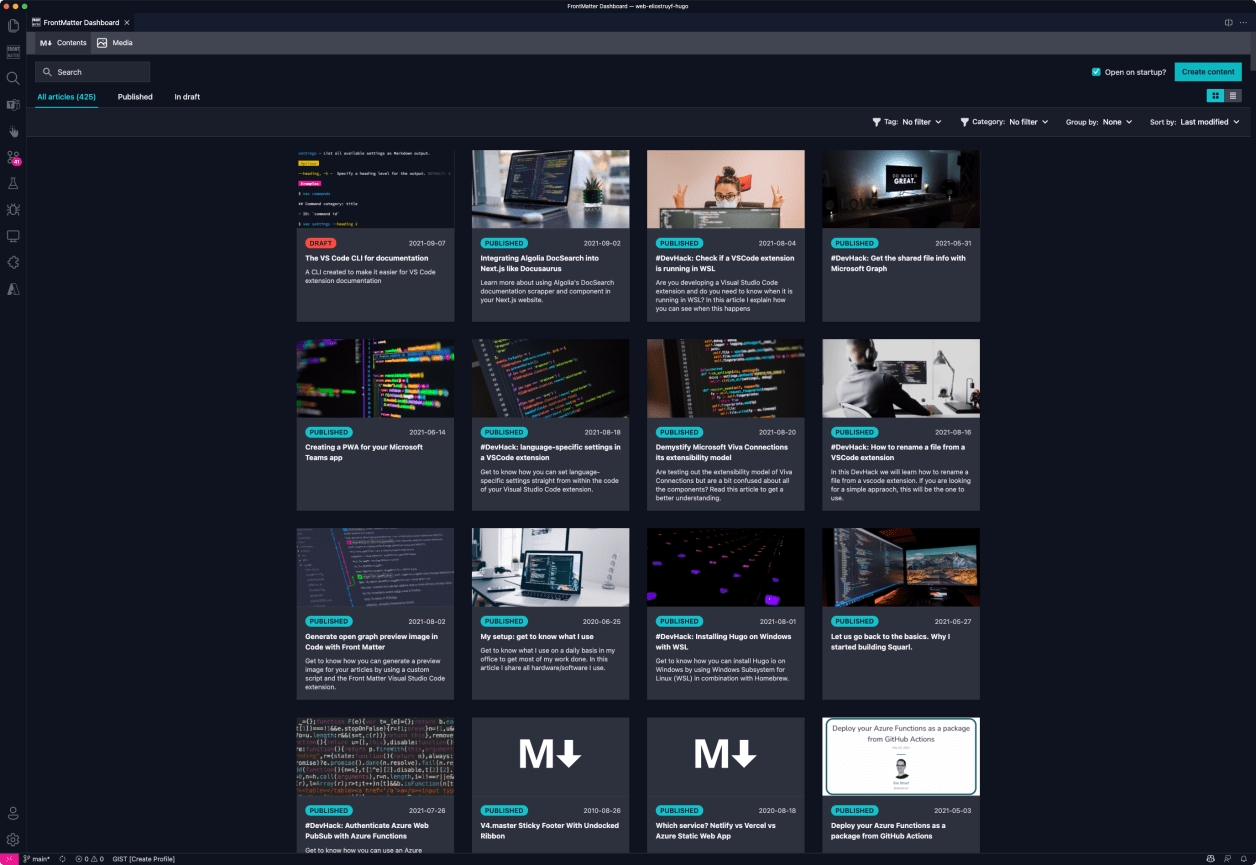
Managing your Markdown pages/media has never been easier in VS Code. With the Front Matter dashboard, you will be able to view all your pages and media.
On the contents view, you can search, filter, sort your pages and much more.
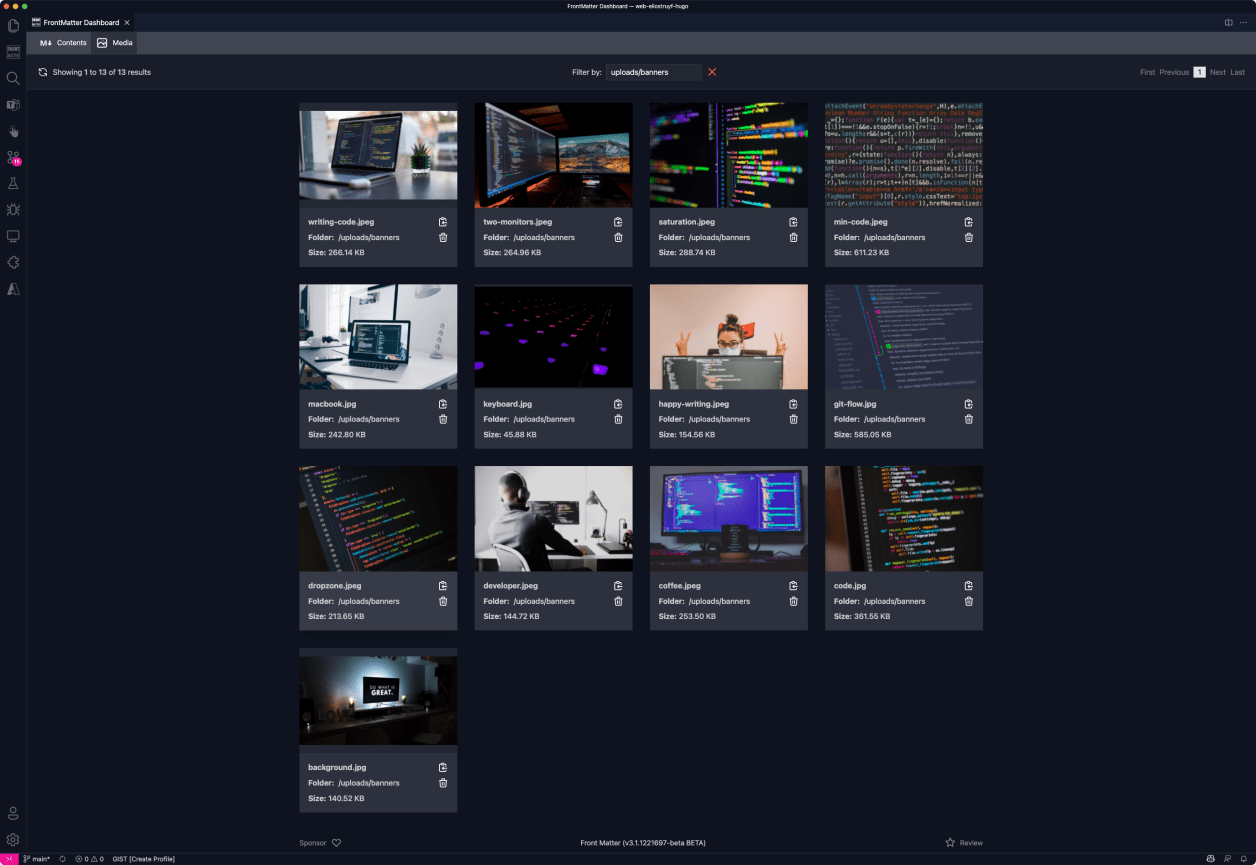
On the media view, you can quickly glance all the available media files in your project and perform quick actions like copying the relative path.
In order to start using the dashboard, you will have to let the extension know in which folder(s) it can find your pages. Be sure to follow our getting started guide.
Important
: If your preview images are not loading, it might be that you need to configure the
publicFolderwhere the extension can find them. For instance, in Hugo, this is the static folder. You can configure this by updating thefrontMatter.content.publicFoldersetting.
Contents view
Supported filters
- Tag filter
- Category filter
- Content folder (when you have multiple registered)
Supported sorting
- Last modified
- Filename (asc/desc)
Media view
The media view has been created to make it easier to look at all media files available for your articles. When you click on an image, it will show a lightbox, so that it is easier to glance at small images.

Media actions
On the image card, there are actions like copying the relative path or deleting the media file.

Drag and Drop
On the media view, we enabled drag and drop for your media files. You can easily drop any image from your explorer/finder window into one of your folders.

Show on startup
If you want, you can check on the Open on startup? checkbox. This setting will allow the dashboard to automatically open when you launch the project in VS Code. It will only apply to the current project, not for all of them.